Install and Activate Microsoft Office, Visio, or Project
Step 1: Download and Install
You can install your Microsoft software using either of the methods below. Please select the version that matches your purchased product key.
Option 1: Direct Download
Select your Office, Visio or Project version and click Download:
Option 2: Download via Microsoft
- Visit setup.office.com.
- Sign in with your Microsoft account, or create one if required.
- Enter your product key when prompted.
- Follow Microsoft's instructions to redeem your key and download the appropriate software.
Installation Instructions for Direct Downloads
For .img Files
- Download the
.imgfile for your selected product. - Locate the downloaded file on your computer.
- Double-click the file to mount it. If it does not open, right-click and select Mount.
- Open the mounted virtual drive in File Explorer.
- Double-click
setup.exeto begin installation. - Follow the on-screen instructions until installation is complete.
- Open Word, Excel, Visio, Project or another installed application.
For .exe Files
- Download the appropriate
.exeinstaller. - Locate the downloaded file on your computer.
- Double-click the executable to start installation.
- If Windows requests administrator permission, verify the publisher and source before proceeding.
- Follow the installation instructions displayed on screen.
- Once installation is complete, open the installed application.
Step 2: Internet Activation
After installation, open any installed Office application, such as Microsoft Word or Excel.
- If an activation window appears, follow the instructions displayed.
- If prompted to enter a product key, select I have a product key or the equivalent option.
- Enter your 25-character product key carefully.
- Ensure your computer is connected to the internet.
- Allow Microsoft Office to attempt online activation.
If you previously redeemed your key through setup.office.com, Microsoft may instead ask you to sign in with the account associated with your product.
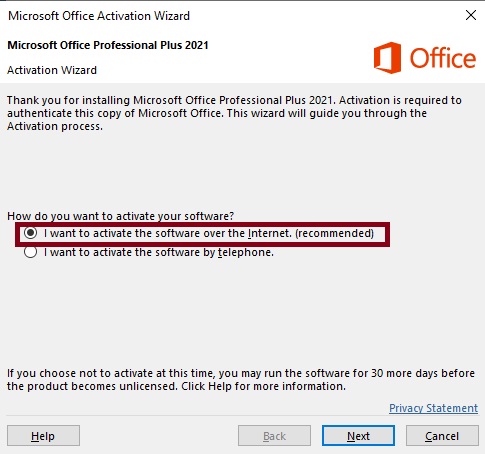
If online activation fails, proceed to Step 3 where telephone activation is available.
Step 3: Telephone Activation
If online activation is unsuccessful, Microsoft may offer telephone activation as an alternative. This option is not available for every product or licence.
- Open an installed Office application, such as Word or Excel.
- Navigate to File → Account → Change Product Key, if this option is available.
- Enter your product key again if prompted.
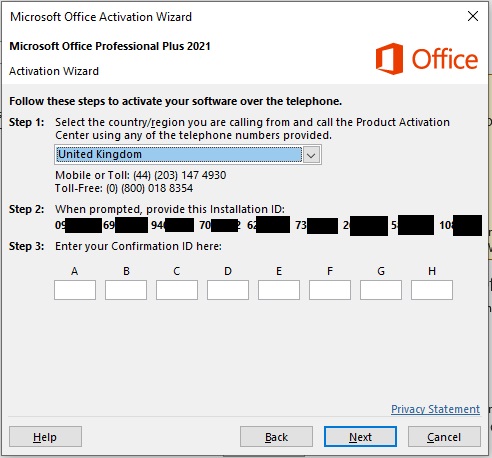
- Select Activate by Telephone when the option is offered.
- Choose your country or region to view the available Microsoft activation instructions.
- An Installation ID will appear in the activation wizard. Keep this information available.
- Visit Microsoft's activation portal: https://aka.ms/aoh and follow the instructions provided to complete the activation process.
- If you require assistance, please contact us via WhatsApp and provide your Installation ID. We will be happy to guide you through the activation process. Never share your Microsoft account password.
Final Step: Complete Activation
If Microsoft provides a Confirmation ID during telephone activation, enter it into the corresponding fields in the activation wizard.
- Enter the Confirmation ID exactly as provided.
- Click Next or the confirmation button shown.
- Wait for Microsoft Office to confirm activation.
- Open File → Account to check the activation status.
Need Help?
If you need assistance installing or activating Microsoft Office, contact us below.