Install and Activate Microsoft Office, Visio, or Project
Step 1: Download and Install
You can install your Microsoft software using either of the two methods below.
Option 1: Direct Download
Select your Office, Visio or Project version and click download:
Option 2: Download via Microsoft
- Go to setup.office.com.
- Sign in with your Microsoft account.
- Enter your product key when prompted.
- Follow Microsoft's instructions to download and install your software.
Installation Instructions for Direct Downloads
- Download the
.imgfile. - Double-click the file to mount it. If this does not work, right-click it and choose Mount.
- Double-click
setup.exeto begin installation. - Once installed, open the program.
Step 2: Internet Activation
When prompted, enter your product key. If asked, sign in with your Microsoft account. Wait while the software attempts to activate online.
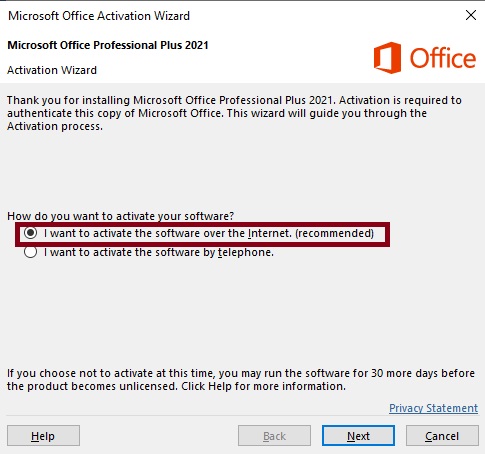
✅ If activation succeeds, you're all set.
❌ If it fails, continue to Step 3.
❌ If it fails, continue to Step 3.
Step 3: Telephone Activation
- Open the installed program.
- Go to File → Account → Change Product Key.
- Enter your product key again if required.
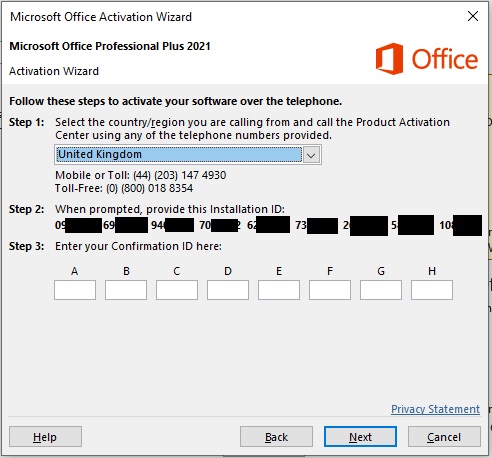
- Select Activate by telephone.
- Choose your country and call the number shown by Microsoft.
- You will receive an Installation ID.
- If Microsoft offers an SMS or website link, you can use it to complete activation faster.
Final Step
Enter the Confirmation ID into the activation window to complete the process.
This key is for one PC only. If you reinstall Windows or move to another computer, activation may be required again.
Need Help?
If you need assistance installing or activating Microsoft Office, contact us below.